
How do I approve a fundraiser?
How to Approve a Fundraiser Event
Once a fundraiser request has been submitted, restaurant teams can review the event details and approve the request directly in DonationScout.
Approving an event confirms the fundraiser with the organizer and moves the event forward in the process.
Approve an Individual Event
- Navigate to Current Events.
- Select the fundraiser request you’d like to review.
- Open the reservation.
- Review the event details.
- Click the green Approve button.
Bulk Approvals
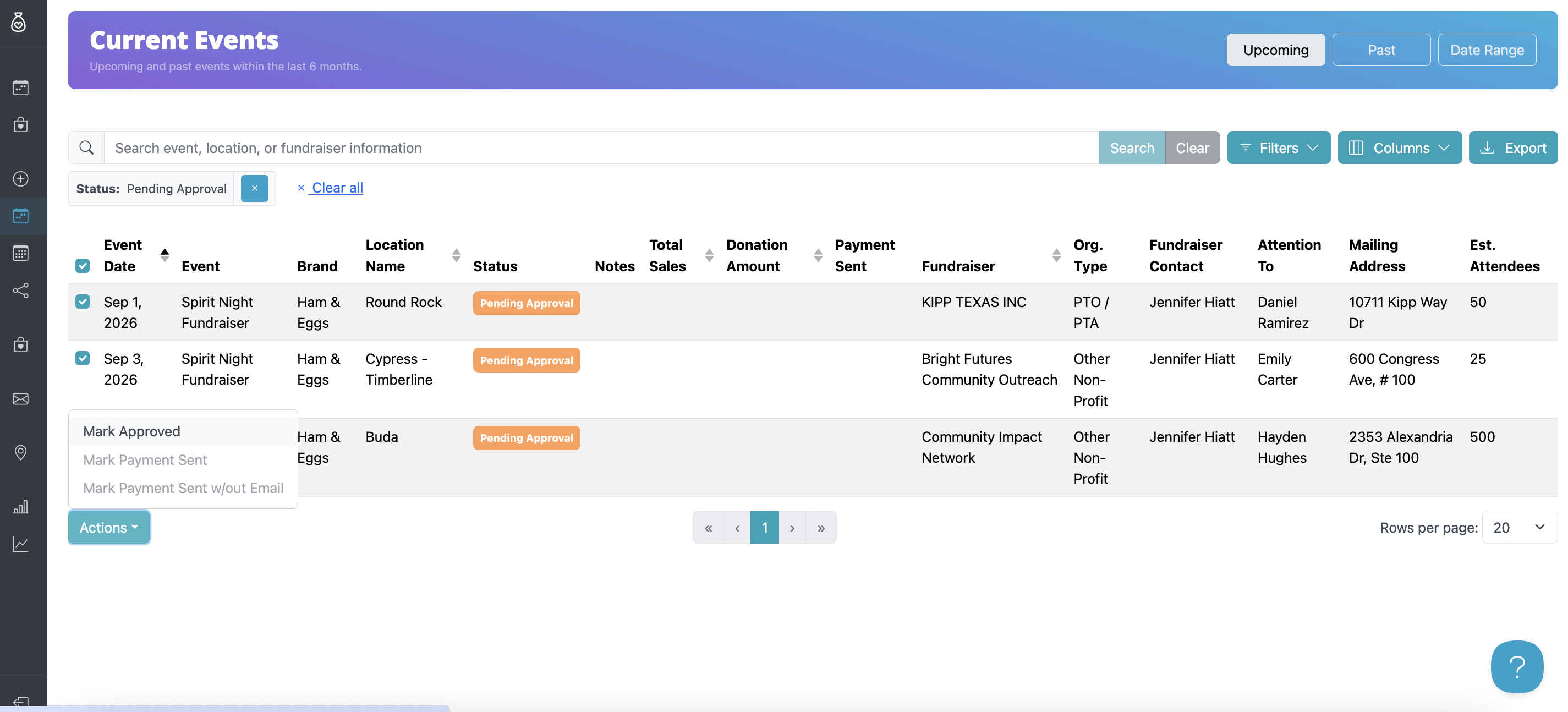
If you have multiple events to approve, you can approve them in bulk:
- Select the checkbox next to each event you want to approve.
- To select all events, check the box to the left of Event Date.
- Scroll to the bottom of the page.
- Under Actions, select Mark Approved.
What Happens After Approval?
Once an event is approved:
- The organizer receives an email confirming the approval, along with a calendar invitation and next steps, including how to download promotional materials.
- The organizer can access their event details, promotional tools, payout information, and other relevant information through the community portal.
- The event moves to the Approved table in DonationScout, giving your team an easy way to manage the event and communicate with the organizer.
Before Approving
DonationScout's availability controls help prevent scheduling conflicts by taking into account blackout dates, store-level calendars, and existing events.
Review a step-by-step demo here: 👉 Manage Fundraiser Approvals